
Sidebar
getting_started
This is an old revision of the document!
Getting Started
Logging In
- Fill-up the username and password field and click the “Login In” button.

Logging Out
- To logout user account. Click the user icon located at the top right corner then click the icon labeled “Logout”.

Forgot Password
- In order to reset a forgotten password the user need to click the “Forgot Password” link at the login page. The user will then be redirected that looks like the image below.
- Type your valid email address in the provided input field then click “Reset Password” button.

Dashboard
- The dashboard is the first screen any user will see after logging in, it's purpose is to inform the user of the current status of sites that are assigned to him and as well as the statistics of the site/s assigned to him.
- The red indicators in the map shows the location of the different sites. The user could also press ctrl + scroll up to zoom in and ctrl + scroll down to zoom out of the map.

User Account
- To open user accounts click the gear icon at the top right menu.

- Click the Users icon
 .
. - The user will be redirected to a page.
- The left side of the page will contain the add user form.


- Right side of the page will contain the registered users, their roles and the the sites they were assigned.

- The user can search for registered user by typing on the search field
 .
. - Scrolling at the bottom of the page is where User Permissions is displayed. This is where the administrator can set user access and functionality limitations for Validator, Operator and Guest users.


- To set a specific user group permission select the user group to update by clicking on these tabs
 , then check the module you wanted for the selected user group to include
  , then check the function to include on that module
 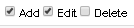 .
.


Getting Help & Support
- For help and support click this icon
 located at the left side menu.
 - Pop-up modal will show.


- Fill-up all the necessary input fields and click the Submit button
 .
.

getting_started.1554261604.txt.gz · Last modified: 2019/04/03 03:20 by jun1
Except where otherwise noted, content on this wiki is licensed under the following license: CC Attribution-Share Alike 4.0 International


