
Sidebar
admin_settings
Admin Settings
Manage Users
- To open user accounts click the gear icon at the top right menu.

- Click the Users icon
 .
. - The user will be redirected to a page.
- The left side of the page will contain the add user form where the administrator can register new users and set their designated roles either as admin, validator, operator or as guest.


- Right side of the page will contain the registered users, their roles and the the sites they were assigned.

- The user can search for registered user by typing on the search field
 .
. - Scrolling at the bottom of the page is where User Permissions is displayed. This is where the administrator can set user access and functionality limitations for Validator, Operator and Guest users.


- To set a specific user group permission select the user group to update by clicking on these tabs
 , then check the module you wanted for the selected user group to include
  , then check the function to include on that module
 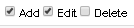 .
. - Then click the Save
 button to finalize.
 - Fill-up all the necessary input fields and click the Submit button
 .
.


User Logs
- To open user logs click the Gear
 icon at the top right corner of the page. Click the User Logs
  icon.
icon. - The user will be redirected to a new page where he/she is able to view user activities.


- To filter out user activities fill-up the input fields found in the left side of the page.
- User activities can be filtered by user, page, action or description.
- After typing on the desired filter criteria click on the Filter button
 .
.

Color Settings
- To open color setting the Gear icon at the top right corner of the page. Click the Color Setting icon
 .
. - The user will then be redirected to the color setting page.

admin_settings.txt · Last modified: 2019/04/03 05:33 by jun1
Except where otherwise noted, content on this wiki is licensed under the following license: CC Attribution-Share Alike 4.0 International


